Blog · 29 Oct 2026 · 7 min read
How to take real estate photos with an iPhone (and edit them so they hold up)
Short version: prepare the room, turn on the grid and level, shoot landscape at chest height from corners, use 1x unless the room is tiny, then correct exposure, colour and verticals. Skip filters and heavy "vivid" modes.
Before you shoot
- Clean the lens. A smudge causes the hazy glow you see round lights and windows in many phone photos.
- Prepare the room. Blinds open, all lights on, beds made, surfaces clear, toilet lids down, ceiling fans off. See our declutter guide.
- Pick your light. Shoot interiors when daylight is even. Shoot the front exterior when the sun is on it, not behind it.
Phone settings
| Setting | What to do | Why |
|---|---|---|
| Grid | On (Settings › Camera › Grid) | Helps keep verticals and horizons straight |
| Level | On (shown with the grid on recent iPhones) | Stops walls leaning |
| Orientation | Landscape | Matches how portals display listings |
| Lens | 1x by default, 0.5x only for small rooms | Less distortion, more honest proportions |
| Flash | Off | Phone flash creates harsh glare |
| Zoom | No digital zoom; walk closer instead | Digital zoom loses detail |
| Styles and filters | Standard, no filter | Gives the editor a neutral start |
How to frame each room
- Stand in a corner or doorway at about chest height.
- Show two walls meeting in a corner for depth, and a glimpse of the next room for flow.
- Keep the phone vertical. Watch the level. Tilting down to show more floor makes the walls lean.
- Tap to expose on the room, not the window, then drag the exposure slider down slightly if the window is a white blob.
- Take two or three angles of the important rooms so there's a choice later.
Edits worth doing (and the ones to avoid)
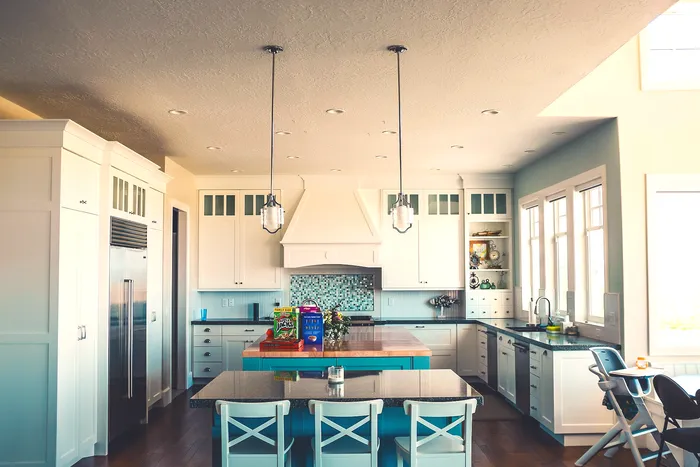
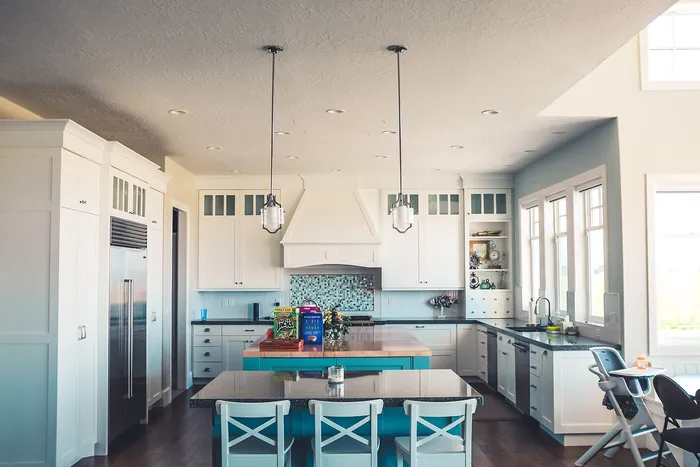 BeforeAfter · Demo on stock photo
- Do: correct exposure and white balance, straighten verticals, crop the edges, and match the look across all photos. Our colour correction guide explains the details.
- Do, when needed: replace a flat grey sky on the exteriors and make one twilight lead photo.
- Avoid: vivid filters, heavy clarity sliders, and anything that changes the property itself. Removing a power line or greening a brown lawn misrepresents the home; see our guide to landscaping edits.
Common phone mistakes
| Mistake | What it looks like | Fix |
|---|---|---|
| Tilted phone | Walls lean inward | Use the level; correct verticals in editing |
| 0.5x in every room | Stretched edges, rooms look bigger than they are | Use 1x where the room allows |
| Lights off | Grey, gloomy corners | Turn every light on |
| Mixed bulbs | Patches of orange and blue | Match bulbs; colour-correct |
| Portrait orientation | Narrow crops on portals | Shoot landscape |
Step by step: shooting a whole listing in about an hour
- Walk the home first (5 minutes). Decide the best angle for each room and the order of the set. Note where the light is coming from.
- Prepare everything at once (15 minutes). Every light on, blinds open, fans and TVs off, clutter away. Doing this room by room while shooting wastes time.
- Exteriors first if the light is good. If the sun is on the front of the house, shoot it now; if not, come back later or on another day.
- Interiors in walking order. Entry, living, kitchen, dining, bedrooms, bathrooms. Two or three angles of key rooms, one of the rest.
- Outdoor spaces last. Garden, deck, garage, any feature such as a pool or view.
- Review on the spot. Zoom in to check sharpness and that you're not in any mirror. Reshooting now is far easier than coming back.
Getting the exposure right on a phone
Phones are good at balancing bright windows and dark rooms, but they still guess. A few habits make their guesses better:
- Tap on a mid-tone area, such as a wall or sofa, not the window or a lamp.
- Lock exposure and focus by pressing and holding until "AE/AF Lock" appears, then recompose. This stops the brightness changing as you move.
- Adjust brightness slightly with the sun slider. Slightly darker is safer than too bright, because blown-out windows can't be recovered.
- Hold still. Brace your elbows against your body, or use a small tripod or a phone clamp. In dim rooms the phone uses slower shutter speeds and blurs easily.
- Use the timer with a tripod so pressing the button doesn't shake the phone.
ProRAW, HEIC or JPEG?
| Format | Good for | Drawbacks |
|---|---|---|
| HEIC (default) | Everyday listings; small files | Some older software needs converting first |
| JPEG ("Most Compatible") | Sending straight to portals or editors | Slightly larger files, less editing room than RAW |
| Apple ProRAW (Pro models) | The most editing flexibility, especially for windows and colour | Very large files; needs editing before use |
If you're sending photos to an editor, ProRAW gives them the most to work with. If not, HEIC or JPEG is fine. Whichever you choose, send the original files, not screenshots or images compressed by a messaging app, which can strip quality.
Accessories that actually help
- A small tripod with a phone clamp. Keeps every shot level and sharp, and lets you shoot at a consistent height.
- A lens cloth. Use it before every room.
- A bubble level on the clamp, if your phone's level is hard to see.
Clip-on wide-angle lenses and phone "beauty" apps rarely help and often add distortion or artificial colour.
Exteriors and the front photo
The front photo is the one buyers see in search results, so it's worth extra care:
- Shoot from the corner of the plot at a three-quarter angle to show depth, plus one straight-on.
- Hold the phone at chest height or slightly higher; very low angles make houses lean back.
- Avoid the sun directly behind the house. If that's unavoidable, a twilight edit can make a strong lead photo; see virtual twilight.
- Clear the drive, bins and hoses before shooting rather than editing them out.
Sending photos to an editor
- Choose your best one or two angles per room; you don't need to send everything.
- Upload originals through a file link such as Google Drive or Dropbox.
- Write a short brief: the look you want (natural, bright), anything to remove that's temporary, and any MLS rules you follow.
- Say which photo should be the lead image.
Phone shoot checklist
- Lens cleaned; grid and level on; flash off.
- Room prepared, lights on, blinds open.
- Landscape orientation, chest height, phone level.
- Exposure locked on the room, not the window.
- Two or three angles of key rooms.
- Not visible in mirrors or windows.
- Originals sent at full quality.
Small rooms, bathrooms and tricky spaces
- Bathrooms: stand in the doorway, step slightly to one side so you're not in the mirror, and use 0.5x only if 1x can't show the room. Close the shower curtain or keep the glass clean and clear.
- Small bedrooms: shoot from the doorway into the far corner. Keeping the bed slightly off-centre often makes the room read better.
- Hallways and stairs: one shot is enough, and only if they're attractive or show the layout.
- Dark rooms: add light (lamps, open doors) rather than relying on the phone's night processing.
- Rooms with a view: expose for the room, then take a second photo exposed for the window. An editor can blend them.
Video and vertical clips
Short vertical clips are useful for social media, but they're a different job from listing photos. If you film on the same visit, shoot the stills first, then walk-through clips. Keep movements slow and steady, and hold the phone level. Don't use clips with altered views or features in your listing marketing without the same labels you'd use for photos.
Privacy and safety while shooting
Remove or avoid documents, mail, family photos, children's names and security system details. Don't photograph keys or alarm panels. If the home is occupied, agree in advance with the seller which rooms are included.
When to use an editor (or a photographer)
If the home has big windows, dark rooms or a premium price, a professional photographer is usually worth it. For everyday listings, a well-shot phone set plus a careful edit can look clean and consistent. That's the work we do: send your phone photos and we return a matched, corrected set within 24 hours. US$29 for your first listing, then US$45 per listing or US$229 a month, and you pay after delivery. See examples and prices.
Frequently asked questions
Can an iPhone take good enough listing photos?
For many listings, yes, if the rooms are prepared and lit, the phone is level and the photos are edited carefully. For high-end homes, a professional photographer still usually gets better results, especially with windows and small rooms.
Should I use the 0.5x ultra-wide lens?
Only when the room needs it. The ultra-wide shows more of a small room but distorts edges and makes spaces look bigger than they are. Use 1x where you can and keep the phone level to limit distortion.
Should I use HDR or Night mode?
Leave the phone's automatic HDR on; it helps with windows. Avoid Night mode for interiors you can light, because it can look smeared. Avoid strong filters entirely.
Can you edit photos taken on a phone?
Yes. Phone photos are a large share of what agents send us. A listing edit is US$29 for your first listing, then US$45 per listing or US$229 a month, delivered within 24 hours, and you pay after delivery.
Related
- Real estate listing photo editing
- Day to dusk photo editing: free tools, DIY and paid services compared
- How to declutter real estate photos: before the shoot and in editing
- Can you edit grass and landscaping in listing photos? What's allowed in 2026
- HDR vs flambient real estate photos: what agents should know (and ask for)
- How to make listing photos look better: 12 fixes, in the order that matters
- Is virtual staging legal, and is it worth it? A realtor's guide
This article is general information, not legal advice. Rules change; check the linked official sources.